
मेरी भाषा

My Question is about
Answer
What is the cause on some laptops our website or our forms do not open while other sites open?
Check Laptop Network Settings:
- Poor Internet Connection: A weak or unstable internet connection can cause difficulties loading certain websites.
- Incorrect DNS Settings: Incorrect DNS settings on the laptop could route requests to the wrong server.
- Security Software Interference:
- Firewall Blocking: The laptop's firewall might be configured to block access to the specific website, considering it a security threat.
- Antivirus Interference: Some antivirus programs may mistakenly flag a website as malicious, preventing access.
- Browser Issues:
- Outdated Cache: Cached data in the browser might be corrupted, causing issues loading the website.
- Cookie Issues: Corrupted cookies associated with the website could interfere with loading.
- Browser Extensions: Certain browser extensions might conflict with the website's functionality.
- Compatibility Issues:
- Outdated Browser Version: An outdated browser version might not be able to properly render the website's code.
- Browser Specific Issues: Some websites might have compatibility issues with certain browsers.
What to do:
- Check your internet connection:
- Ensure you have a stable internet connection and try accessing other websites.
- Clear browser cache and cookies:
- Clear the cache and cookies for the specific website in your browser settings.
- Try a different browser:
- Open the website using a different web browser to check if the issue is browser-specific.
- Review firewall and antivirus settings:
- Check your firewall and antivirus settings to ensure they are not blocking the website.
- Update your browser:
- Make sure you are using the latest version of your web browser.
https://www.namehero.com/blog/5-ways-to-fix-the-this-site-cant-be-reached-error/
- From the Windows Defender Firewall window, click on “Allow an app or feature through Windows Defender Firewall.” Ensure that the desired web browsers (e.g., Google Chrome) is listed and has both the “Private” and “Public” checkboxes ticked. If it is not listed, click on “Change settings” and then “Allow another app” to add the browser.
- Click “OK” to save the changes and exit the Windows Defender Firewall settings.
For Antivirus software
- Locate your antivirus software icon in the system tray or search for the program in the Start menu. Double-click on the icon to open the antivirus program.
- Look for settings related to firewall or network protection within the antivirus program. This may be located in the main dashboard or within the settings/preferences menu.
- Ensure that your web browser (e.g., Google Chrome) is listed and allowed access to the internet. If it is not listed, look for options to add an application or create an exception.
- Save the changes made to the antivirus program’s firewall or security settings.
#4. Flush Your DNS Cache
Steps to flush DNS on Windows
Open Command Prompt as an administrator:
Click the Start button or the Windows key on your keyboard.
Type "cmd" into the search bar.
Right-click on "Command Prompt" from the search results and select "Run as administrator".
- Enter the command:
In the Command Prompt window, type
ipconfig /flushdns.
- Press Enter:
Press the Enter key to execute the command.
- Confirmation:
You will see a message confirming that the DNS Resolver Cache was successfully flushed.
Why you might need to flush your DNS:
If you can't load a website, flushing the DNS can resolve the issue by clearing outdated or corrupt cache entries.
It forces your computer to retrieve fresh DNS records, which can be necessary when a website has recently changed its IP address.
#5. Change DNS Servers
Sometimes, the default DNS servers provided by your internet service provider (ISP) may be experiencing issues. Changing to alternative DNS servers, such as Google DNS or OpenDNS, can help resolve the “This site can’t be reached” error. Here’s how to change your DNS servers:
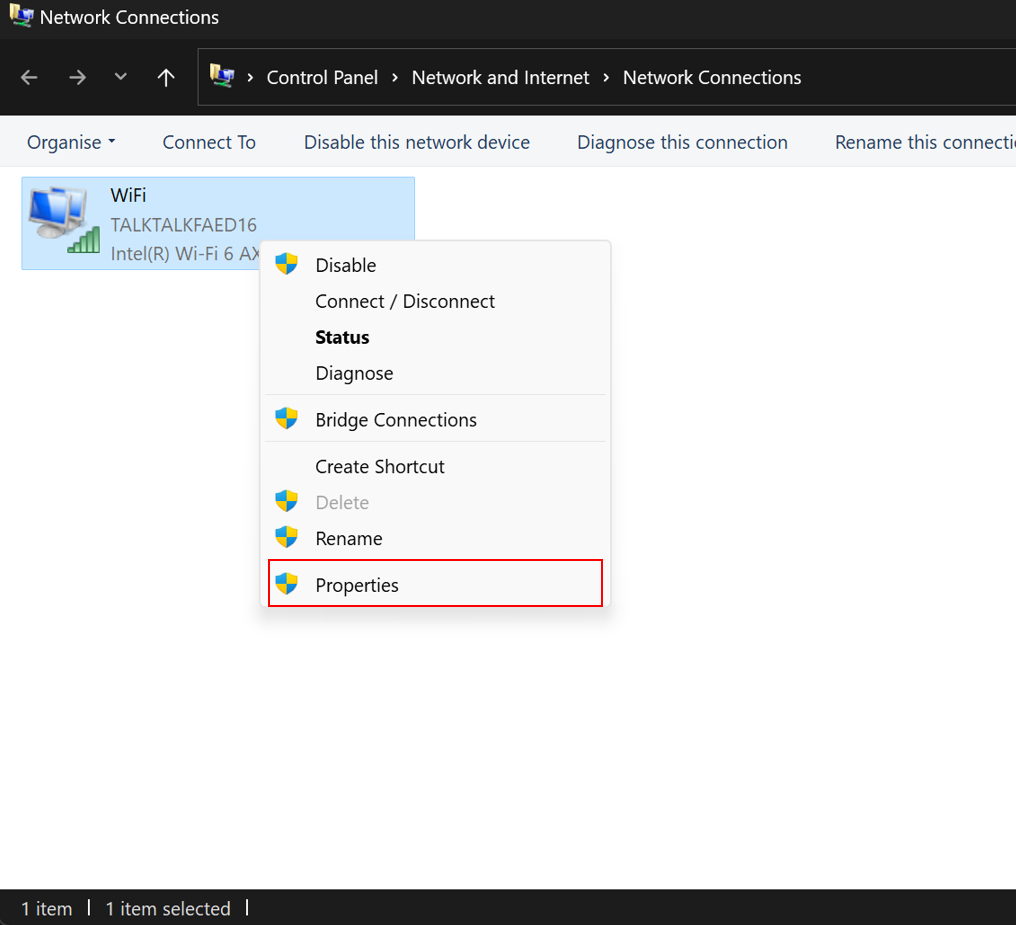
- Press the Windows key + R, type “ncpa.cpl” in the Run dialog box, and press Enter. This will open the Network Connections window.
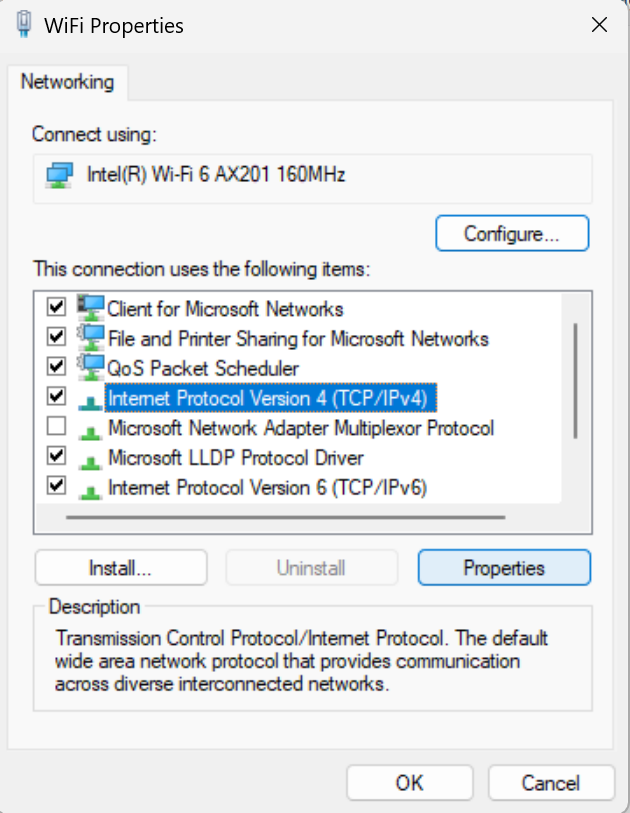
- Right-click on your active network connection and select “Properties.” This will open the network adapter properties window.
- In the network adapter properties window, locate the “Internet Protocol Version 4 (TCP/IPv4)” option and double-click on it.
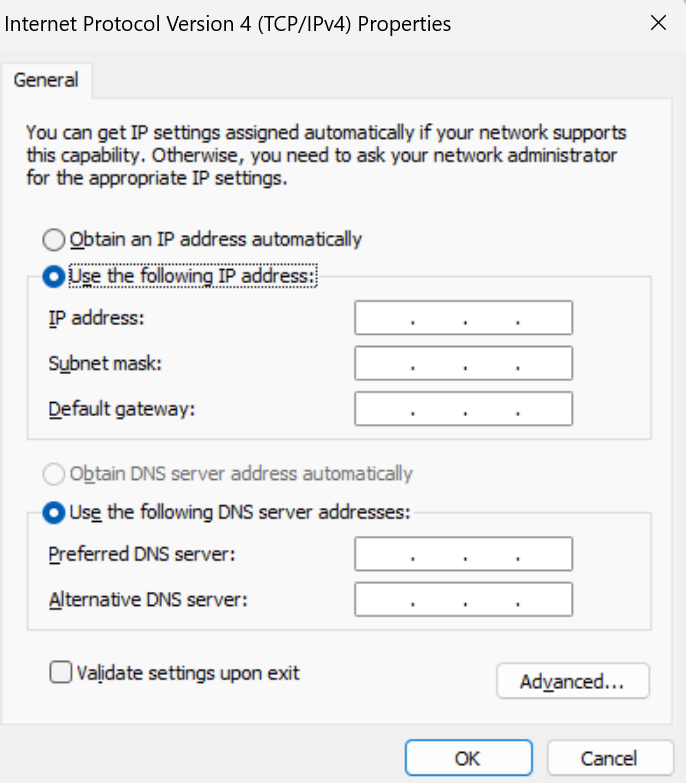
- In the Internet Protocol Version 4 (TCP/IPv4) properties window, select the option “Use the following DNS server addresses.”
- Enter the preferred and alternate DNS addresses. For example, you can use Google DNS by entering “8.8.8.8” as the preferred DNS server and “8.8.4.4” as the alternate DNS server.
- Click “OK” to save the changes and exit the properties window.
By flushing your DNS cache and changing DNS servers, you can effectively troubleshoot DNS-related issues that may be causing the “This site can’t be reached” error. These methods help ensure that your system is obtaining accurate and up-to-date DNS information, enabling successful website access.

That’s Why we ask candidates at job portals; in pre screening; are you internet savvy?
Employees who can't find solutions to such simple challanges are a liability. We should not waste even 20 seconds with such fellows.